 CherryIN
WorkBuddy Setup Guide
Connect WorkBuddy to CherryIN with a custom model, API endpoint, API key, and model capabilities
How it connects
WorkBuddy lets you add custom models through its settings without editing configuration files. Its official model configuration guide describes using Custom to enter a third-party endpoint, API key, and model name.
CherryIN provides an OpenAI-compatible API that fits this setup. This guide uses Chat Completions: choose a model that supports that API, plus tool calling if you want WorkBuddy to perform actions such as reading or writing files.
Before you start
- Install or update the client from the WorkBuddy website and sign in.
- Follow Quick Start to create a CherryIN API key with available account balance and token quota.
- Check the full model ID in the CherryIN console and confirm your token can access it.
Setup steps
Open model settings
Go to Settings → Model, click Add Model, and select Custom under Other in the provider dropdown.
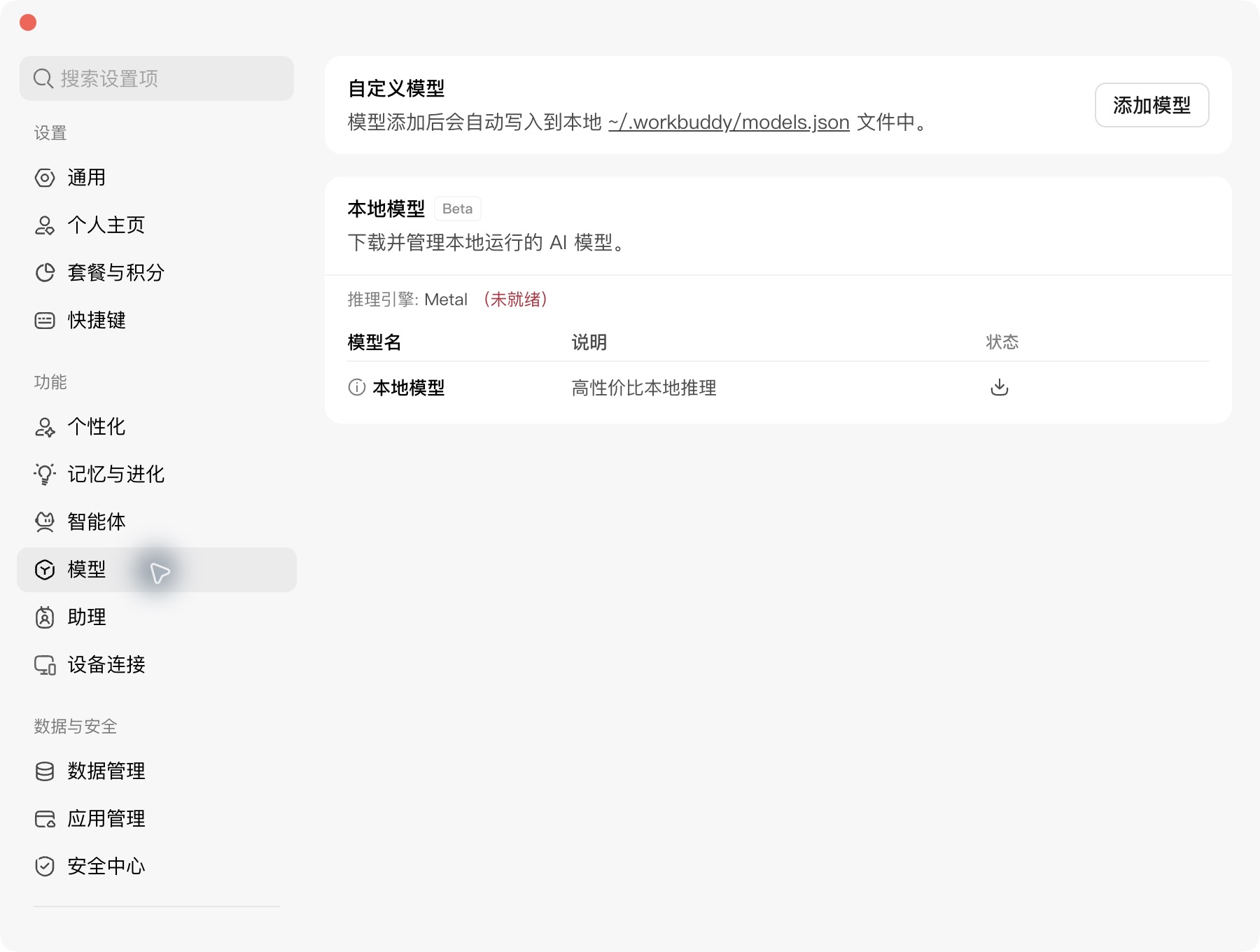
Labels may vary by version. Update your client if the custom-model option is missing.
Enter your CherryIN connection details
| Field | Value |
|---|---|
| Provider | Custom |
| Endpoint URL | https://open.cherryin.net/v1/chat/completions |
| API Key | Your CherryIN API key, without any additional prefix |
| Model name | For example, deepseek/deepseek-v4-flash; use the full model ID from the CherryIN console |
Use the CherryIN endpoint and key, not a Tencent Cloud Token Plan, Coding Plan, or another provider's preset.
Endpoint URL vs Base URL
WorkBuddy accepts the full chat endpoint shown above. The https://open.cherryin.net/v1 value used in other guides is a base URL; this guide supplies the complete endpoint. Do not duplicate /v1 or /chat/completions.
Keep the exact CherryIN model ID, including any provider prefix it contains. Do not substitute a display nickname.
Configure model capabilities
In advanced settings, match the options to the model's actual capabilities:
| Option | Suggested setting |
|---|---|
| Tool calling | Enable for file operations and other actions, using a model that supports tools |
| Image input | Enable only for a model that accepts images; leave off for an initial text-only test |
| Thinking mode | Enable only when supported by the model and endpoint; leave off if unsure |
| Custom Protocol | Off: CherryIN uses the standard Chat Completions path |
| Input / Output | Context and output length settings; stay within the model's limits and keep defaults if unsure |
These settings declare capabilities; they cannot add features the model does not support. See the official custom-model settings reference for the fields.
For deepseek/deepseek-v4-flash, enable tool calling and disable image input, thinking mode, and Custom Protocol. Leave Input / Output limits at their defaults.
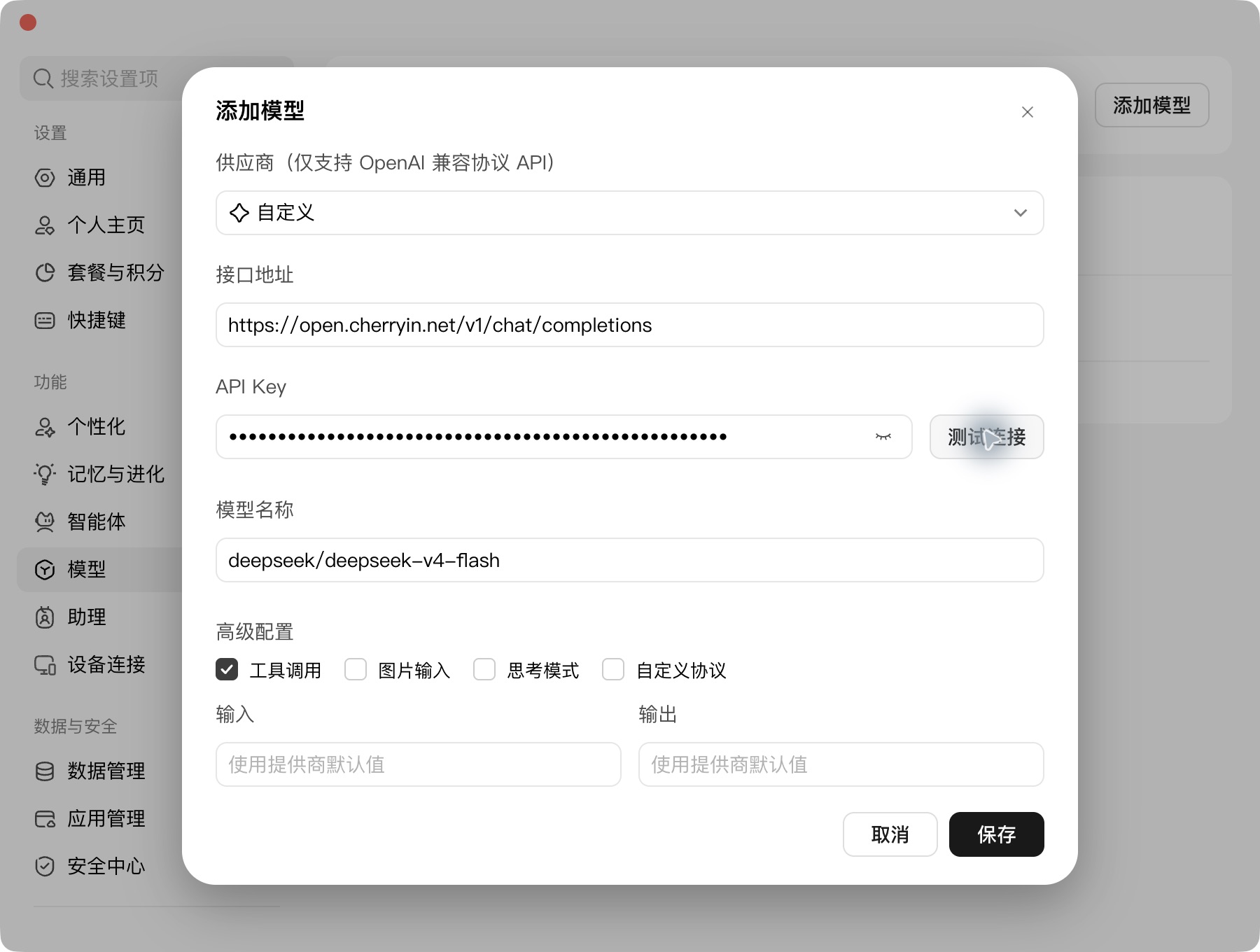
Click Test Connection, then click Save once the connection succeeds.
Start using the model
Return to the conversation and select your model from the Custom Models group to send messages through CherryIN.
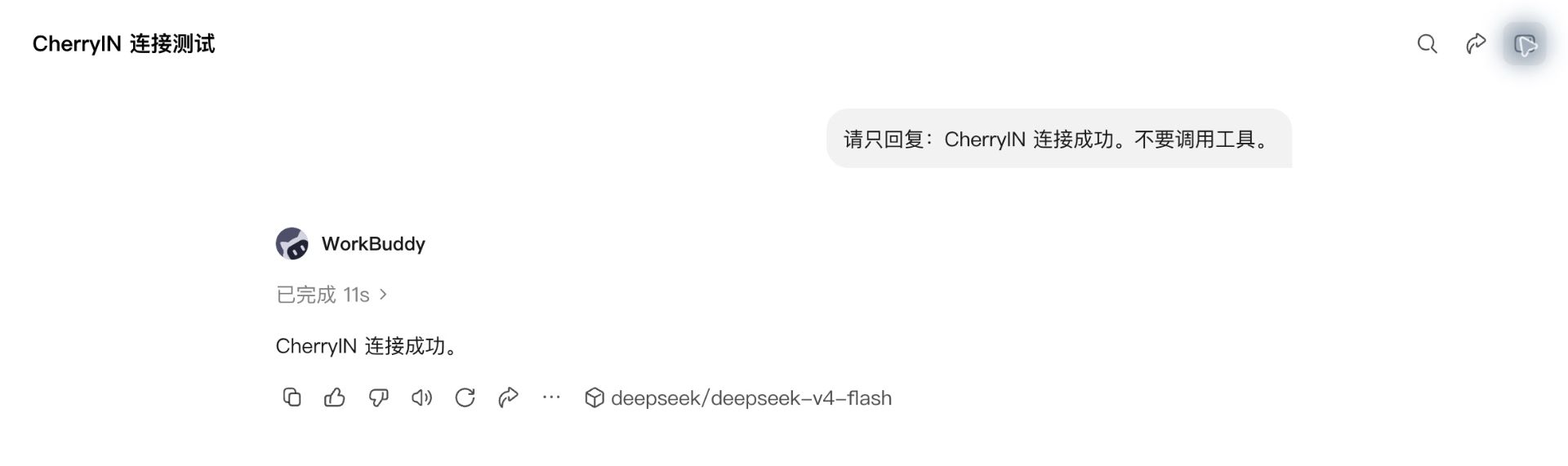
Send a simple message to check the connection:
Reply with “Connection successful” without calling any tools.After receiving a reply, check the CherryIN console for a matching model request to confirm that the traffic went through CherryIN.
The model name appears below the response:
To work with local files, start a new task and use Select Workspace → Open Local Folder to select their directory.
For example, the directory might contain this sales data:
product,quantity,unit_price
notebook,3,20
pen,5,4
Ask WorkBuddy to read and summarize it:
Read sales.csv in the current workspace and calculate each item amount and the total using quantity × unit_price. Do not modify the original file.For this data, the item amounts are 60 and 20, totaling 80.
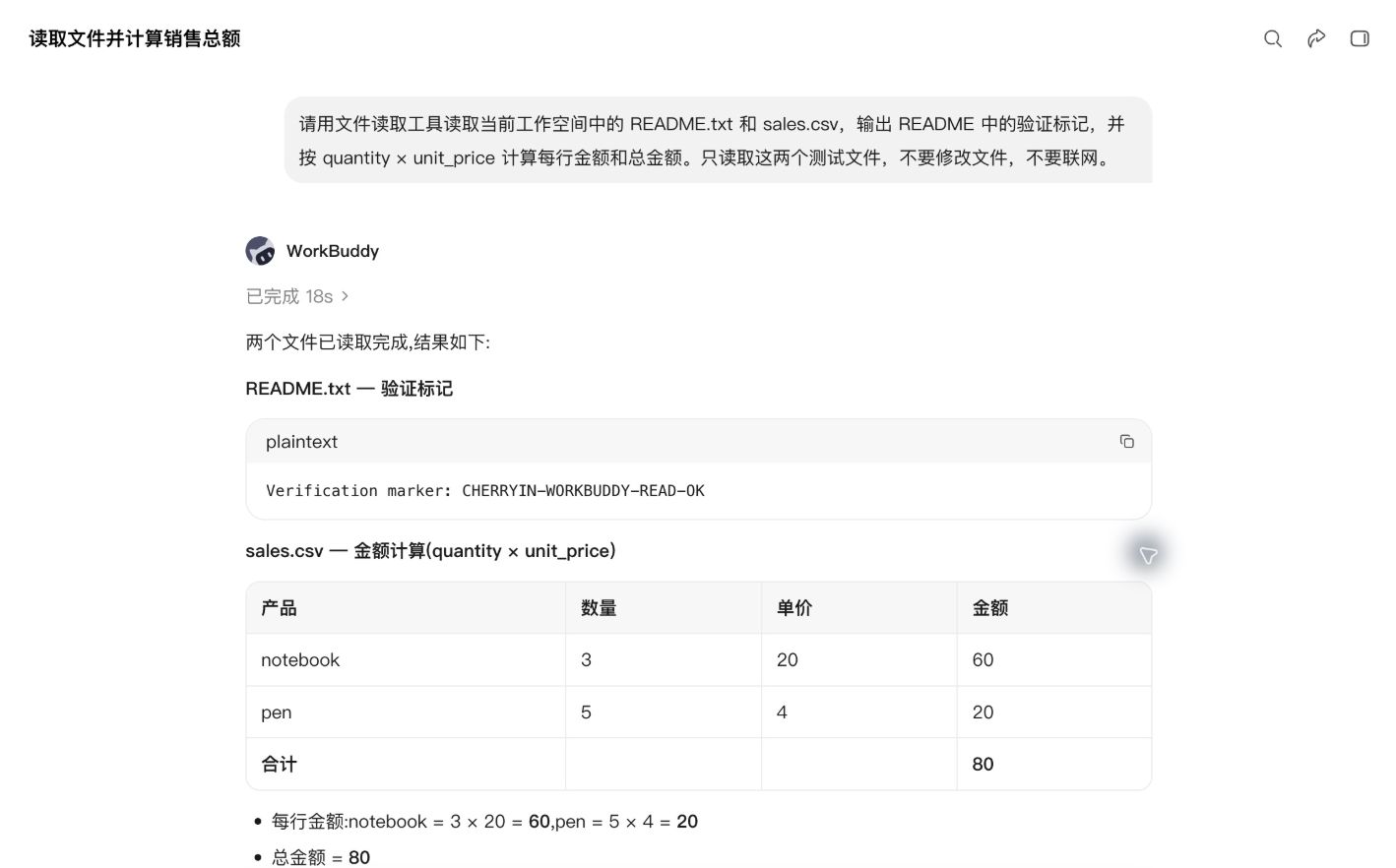
Working with local files requires a model that supports tool calling and permission for WorkBuddy to access the selected directory.
Choosing a model and API
- Start with a model your token can access that supports Chat Completions and tool calling. Verify image and reasoning support separately if needed.
- Availability on CherryIN does not guarantee compatibility with this setup. If a model requires the Responses API, use a client or integration that supports it. See the OpenAI-Compatible Setup Guide.
- WorkBuddy's Custom Protocol switch controls URL validation and path completion; it is not a Responses or Anthropic protocol selector. Changing the URL to
/v1/responsesor/v1/messagesalone does not convert the request format. See the official protocol behavior.
Troubleshooting
| Issue | What to check |
|---|---|
401 Unauthorized | Use an active CherryIN key without spaces, line breaks, or a manually added Bearer prefix |
404 or endpoint not found | Use https://open.cherryin.net/v1/chat/completions without duplicated paths and keep Custom Protocol off |
| Model not found or access denied | Copy the exact CherryIN model ID and check token group and model restrictions; do not use a WorkBuddy built-in display name |
Insufficient quota or 429 | Check CherryIN balance, token quota, and concurrency limits; reduce parallel tasks before retrying rate-limited requests |
| Task stays at “Preparing” | Stop and start a new task, check client networking and the workspace, and use CherryIN request records to confirm whether a request was sent |
| Chat works but file operations fail | Check tool support, the tool-calling option, and WorkBuddy's access to the selected directory |
| Requests still do not use CherryIN | Select the custom model in the current conversation and verify CherryIN request records rather than relying on the model's self-description |
Billing and next steps
Model requests made through this configuration follow CherryIN's usage-based billing and appear in the CherryIN console. WorkBuddy subscriptions and other feature charges follow its own terms. See WorkBuddy's custom-model billing notes.
- Repeat the setup for additional models, using each model's full ID and supported capabilities.
- For token groups, see Quick Start.
- For general API troubleshooting, see the OpenAI-Compatible Setup Guide.