 CherryIN
Quick Start
Start your CherryIN exploration journey in just a few steps
👋 Welcome
Welcome to CherryIN! This guide will quickly walk you through the environment setup. In just 4 simple steps, you'll be able to enjoy stable, high-speed large model services.
Step 1: Create an Account
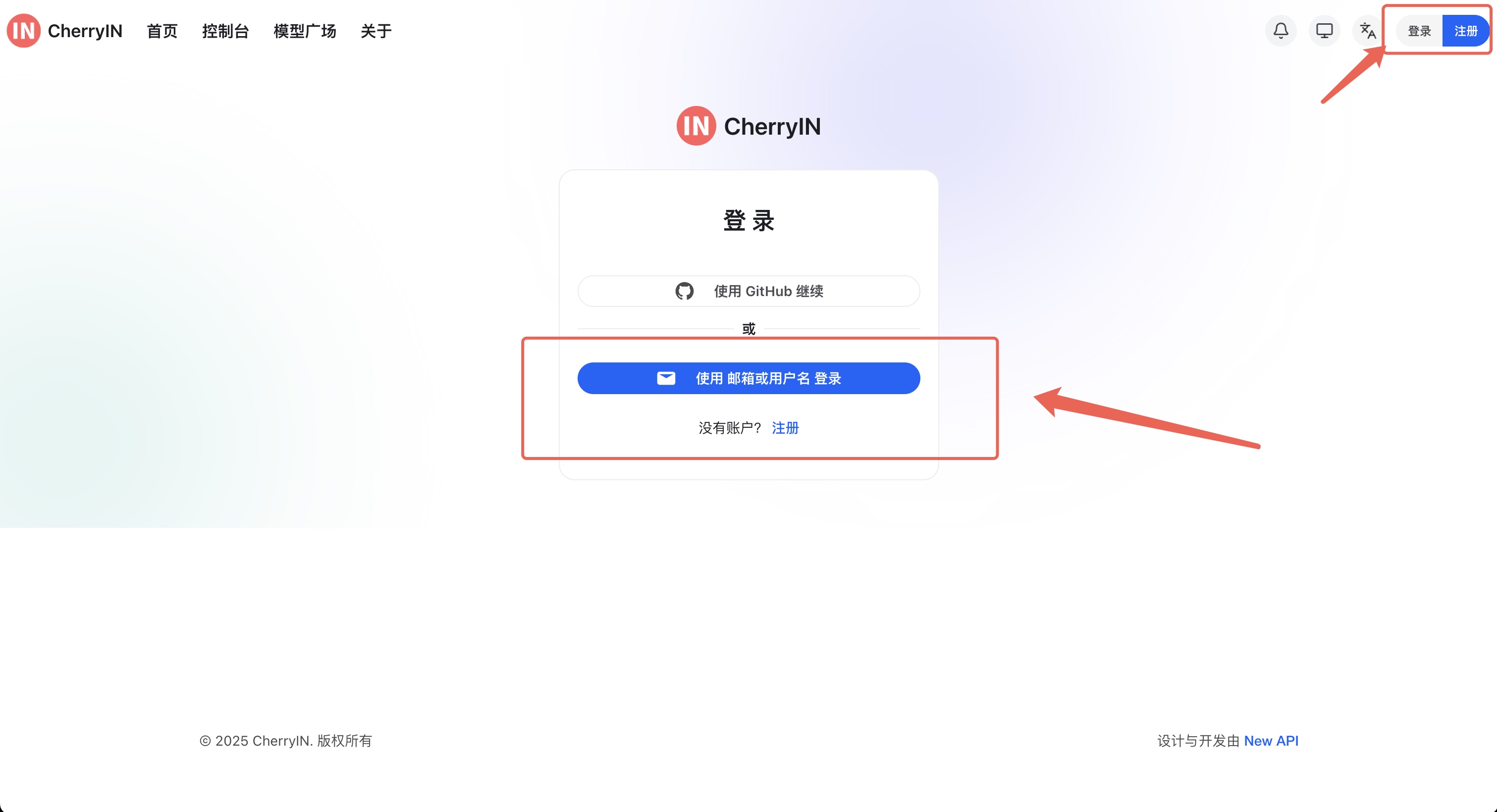
First, you need to register a CherryIN account. Please click the "Sign Up" button in the upper right corner of the homepage.
💡 Friendly Tip We strongly recommend using your frequently used email for registration. This way, if you encounter issues and need technical support, we can contact you and resolve problems more quickly.
Step 2: Top Up Credits
To provide you with the most stable and high-quality service, CherryIN insists on connecting directly to official large model vendor channels. After topping up, you can use all services on the site. Thank you for your support!
Please click the "Top Up" entry in the console:

⚠️ Payment issues? Check your browser blocker If there's no redirect after clicking pay, it's usually because the browser blocked the pop-up (especially Safari browsers). Please check the address bar or browser prompts and allow pop-ups to proceed with payment normally.

After the top-up is credited, we can create an API Key (token) to start using the services.
Step 3: Create a Token (API Key)
Go to the "Token Management" page and click "Add Token":

When setting the limit, it is recommended to select "Unlimited". This allows you to fully utilize the balance in your account and avoid service interruption due to a single Key's limit being exhausted.
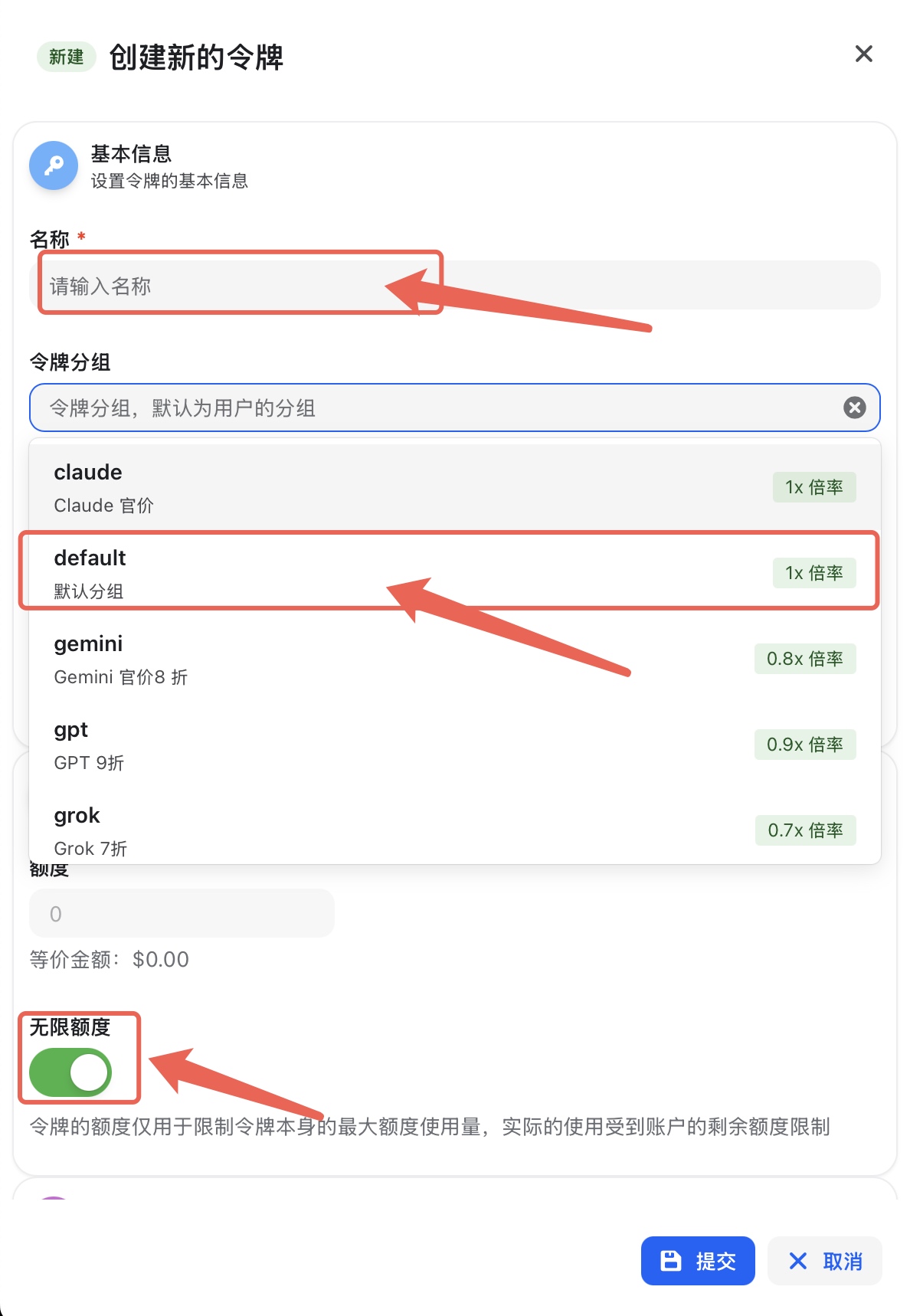
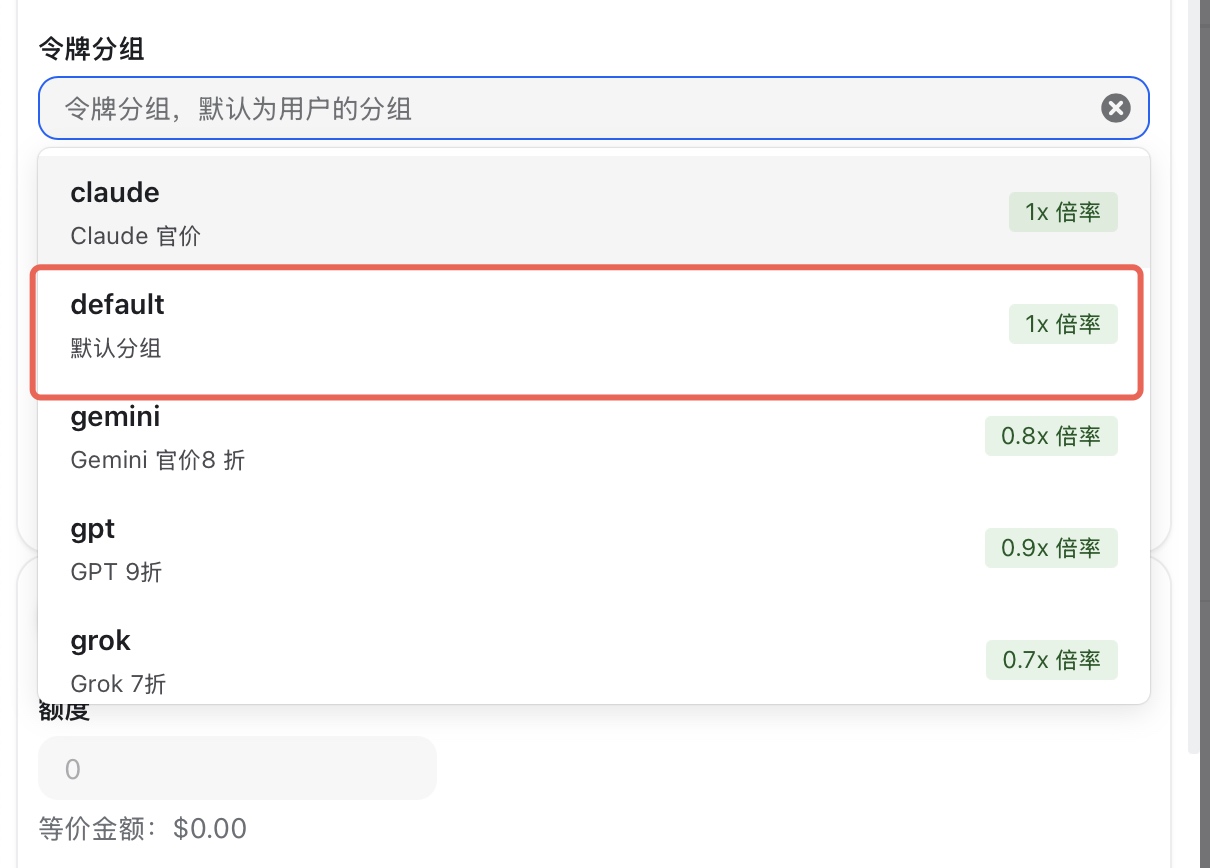
🤔 How to choose a "Token Group"?
To give back to our users, we periodically launch special offers (e.g., Gemini discounts). Different groups correspond to different billing strategies:
- Strategy A: Carefree & Universal (Recommended for Beginners)
- Create one Key under the
defaultgroup. - Advantage: Can directly call all models on the site without additional configuration, making it the most convenient option.
- Create one Key under the
- Strategy B: Exclusive Discounts
- Create one Key under a promotional group (e.g.,
gemini). - Advantage: Enjoy discounted rates when using specific models under this group.
- Create one Key under a promotional group (e.g.,
Step 4: Start Using (Using CherryStudio as an Example)
CherryIN supports all Chat clients compatible with the OpenAI format (such as CherryStudio, Chatbox, etc.). Here, we will use CherryStudio for demonstration.
Scenario 1: Using Universal Services (Default Group)
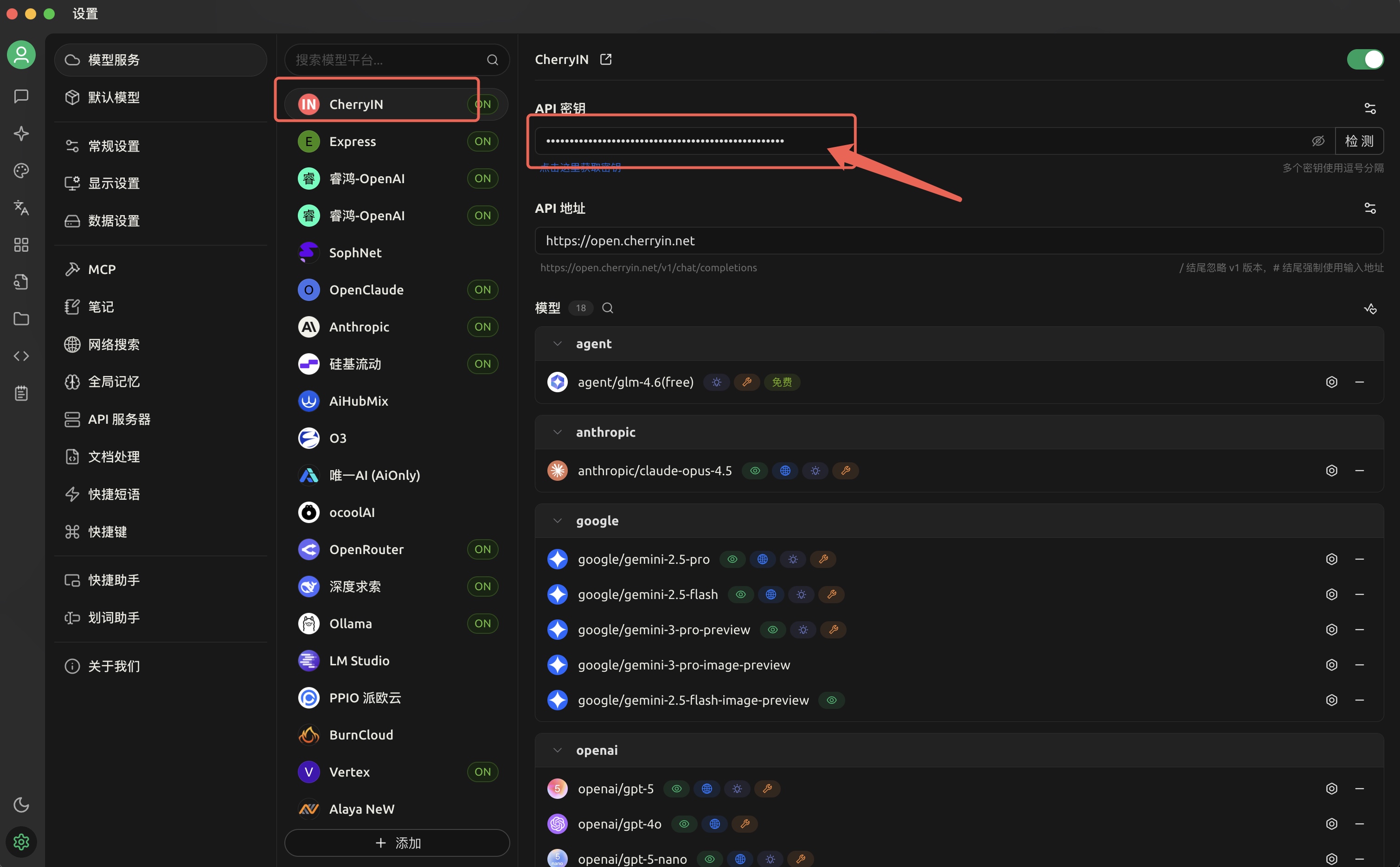
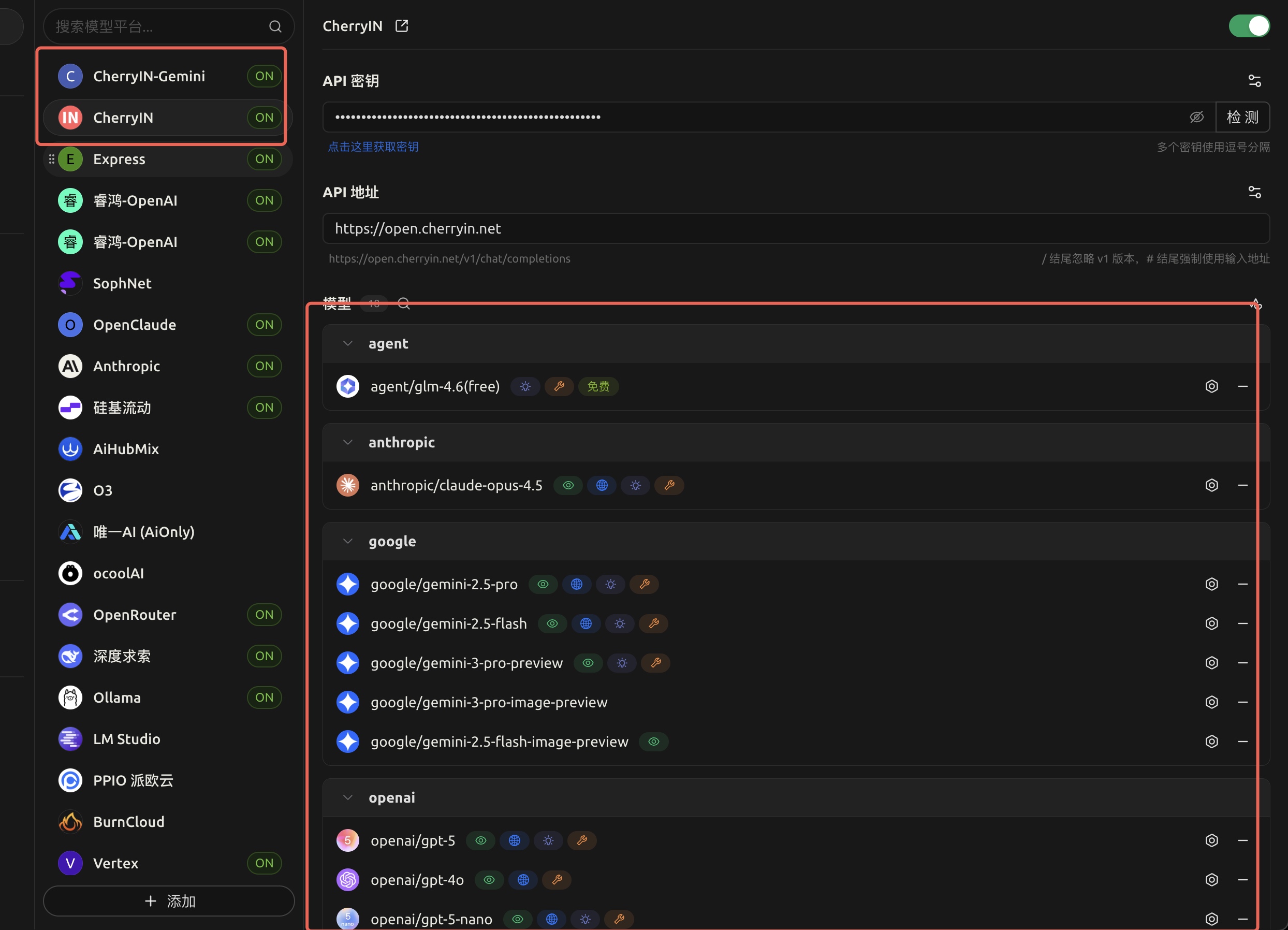
Open the CherryStudio settings page and find the built-in provider [CherryIN]:
- API Key: Enter the token created in the
defaultgroup. - Click "Check" and save.
💡 The following is advanced configuration. Beginners can skip this section.
Scenario 2: Configuring Discount Offers (Advanced)
If you want to use discounts for a specific group (e.g., Gemini 20% off), be sure to create a new custom provider and do not overwrite the default settings.
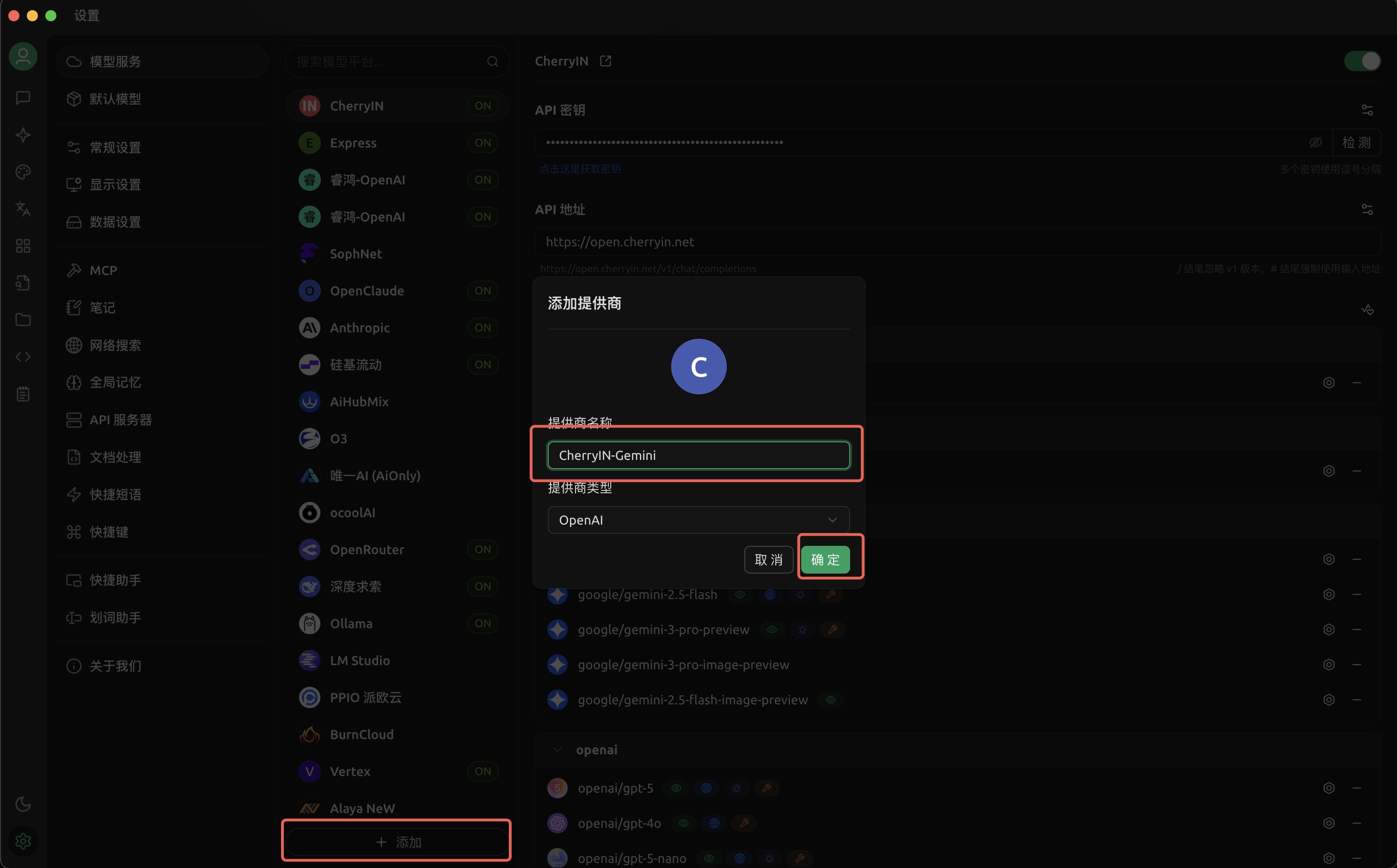
- Click "Add Custom OpenAI Provider" on the settings page.
- API Base URL: Enter
https://open.cherryin.net - API Key: Enter the dedicated token you created under the
geminigroup.
- Click "Model Management" to add the models supported by this group.
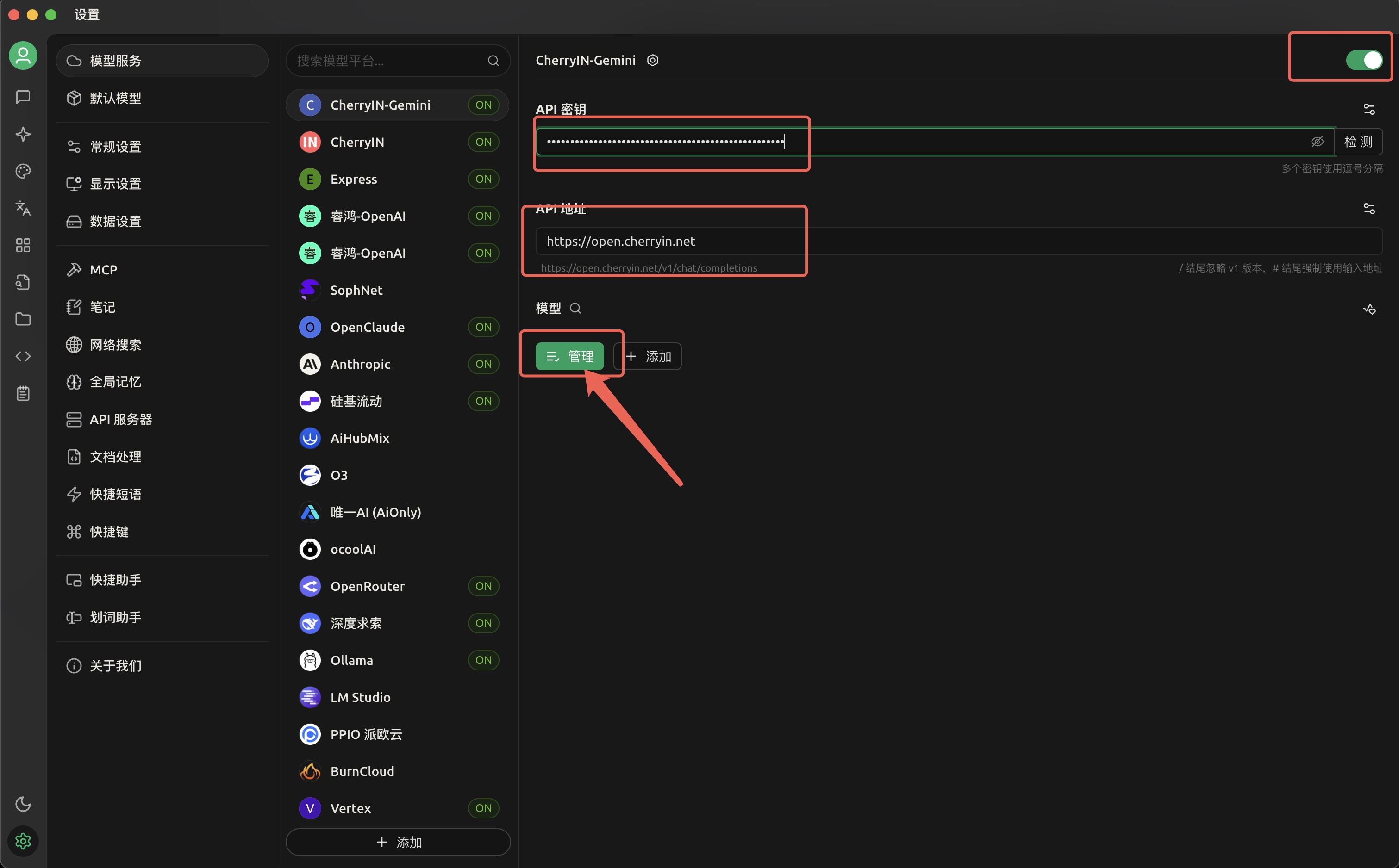
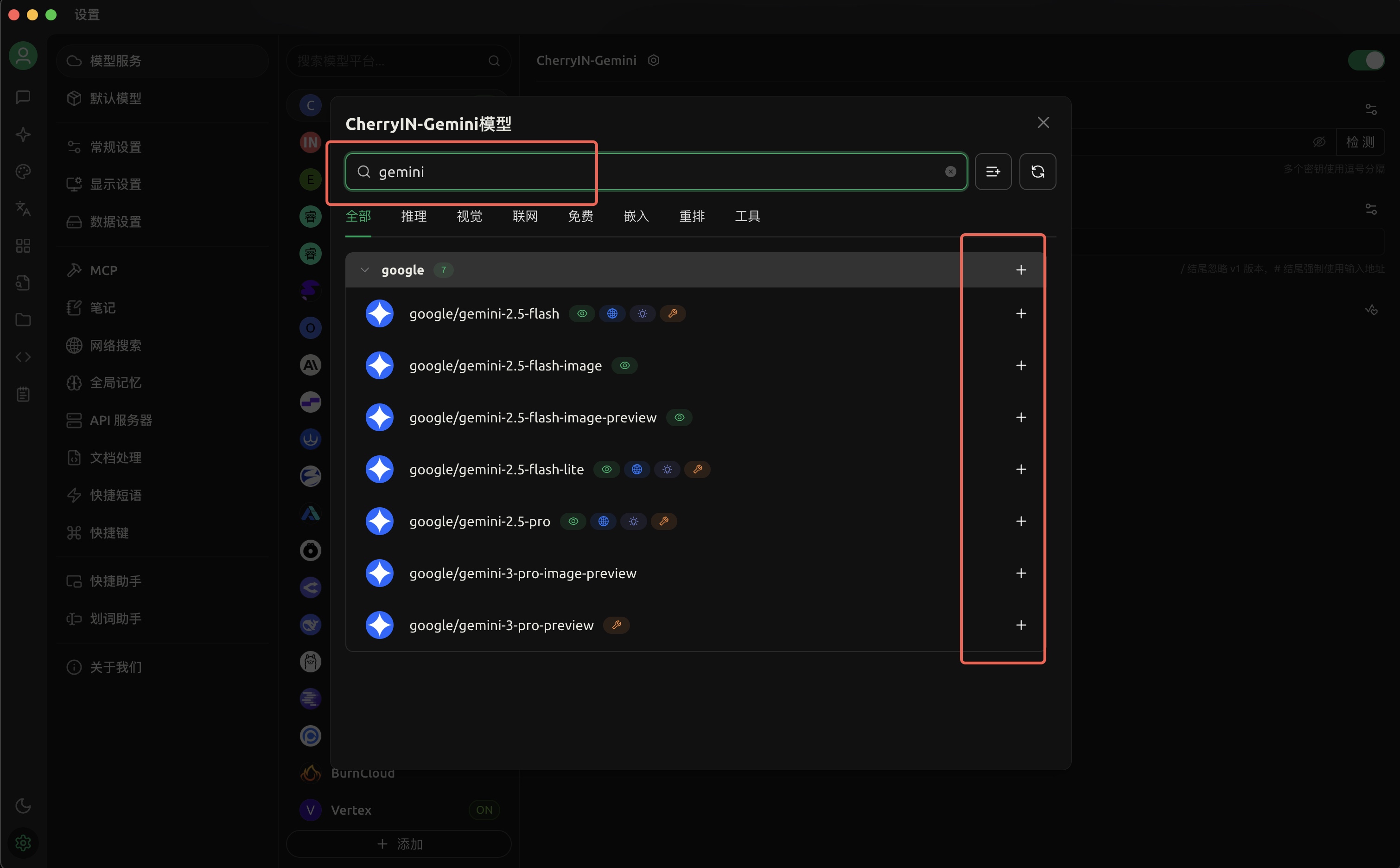
- After configuration is complete, you can select the model in the dialog for testing.
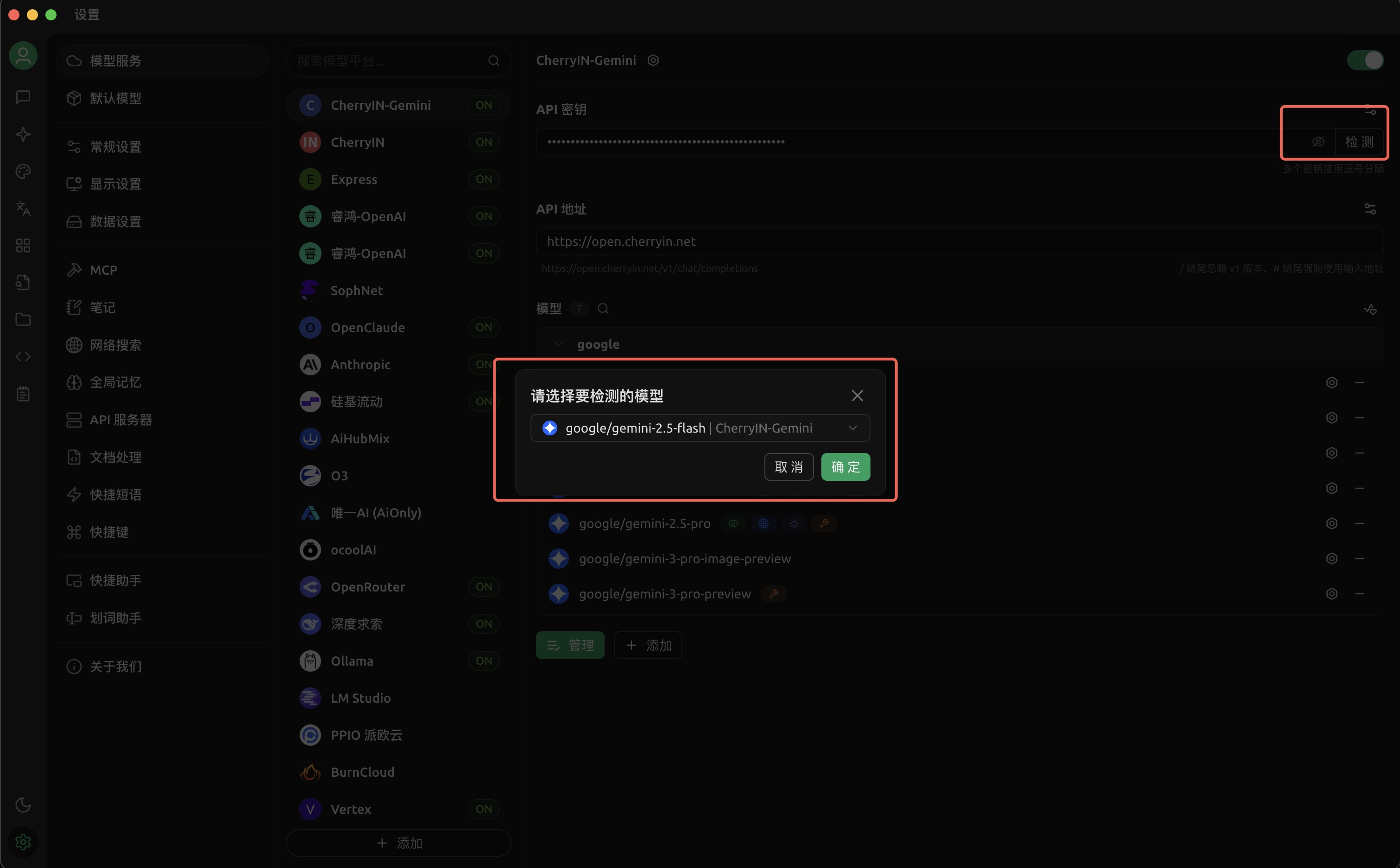
🎉 Best Practice Suggestions
For the smoothest experience, we recommend configuring as shown below:
- Primary Configuration: Enter the Key from the
defaultgroup into the default CherryIN provider for daily use of all models. - Cost-saving Configuration: Enter the Key from the promotional group into a newly created custom provider, specifically for taking advantage of discounts/special offers.
Now, start enjoying your AI journey!